Footage ManagerFootage Manager

One workflow for FCP library operations

Footage Manager connects FCP library analysis, Auto Relink, Reverse Tracking, and Media Transfer into a practical macOS operations tool for projects spread across external SSDs and NAS storage.

Work areas
3 tabs
Link management
4 modes
Transfer scenarios
3 flows

Project operations dashboard

Library Analysis / Reverse Tracking / Media Transfer

macOS
Project operations dashboard. Main app screenshot showing Library Analysis, Reverse Tracking, and Media Transfer tabs with library status, media folders, preview, and transfer progress

The bottleneck is often media location and link management, not editing

As FCP libraries grow across external SSDs, NAS volumes, and shared folders, original files, symbolic links, caches, and external references become difficult to reason about together.

Missing Media keeps coming back

Renamed drives, moved folders, and NAS path changes can leave FCP unable to find the same file. Comparing candidate paths and relinking manually takes time.

Originals, symlinks, and caches are mixed together

A library can contain internal originals, external-reference symlinks, render/proxy/analysis caches, and stale items. Cleanup starts with knowing what each file actually is.

External folder usage is unclear

Before deleting or archiving a NAS folder, editors need to know which libraries still use each file, and which files are duplicates or unused.

Moving shared external media can affect other libraries

One external clip can be referenced by multiple FCP libraries. Moving it from an SSD to a NAS without checking impact can break other projects.

Library and external storage relationship diagram. Concept diagram with the FCP library package in the center, internal Original Media on the left, external SSD/NAS folders on the right, and arrows for symbolic links and external references

Footage Manager separates inspection, repair, tracking, and movement

Restore saved state, inspect the library, repair links, trace external folder usage, then execute the transfer flow that matches the storage goal.

01

Restore work state

Reload saved libraries, media folders, analysis caches, and snapshots so large projects do not need to be added again.

02

Analyze the library

Inspect events, projects, original media, symbolic links, render cache, preview, and metadata in one screen.

03

Clean up link state

Use Auto Relink to review link status, externalize originals, change media locations, and fix broken links.

04

Reverse track folders

See which libraries use files in external SSD or NAS folders, then separate duplicates and unused candidates.

05

Run the right transfer

Export from the library, embed external media into the library, or move media between external folders and verify the result.

Restore -> analyze -> manage links -> track -> transfer workflow diagram. Five-step process diagram showing Startup Restore, Library Analysis, Auto Relink, Reverse Tracking, and Media Transfer

Three tabs separate state inspection, usage tracking, and actual movement

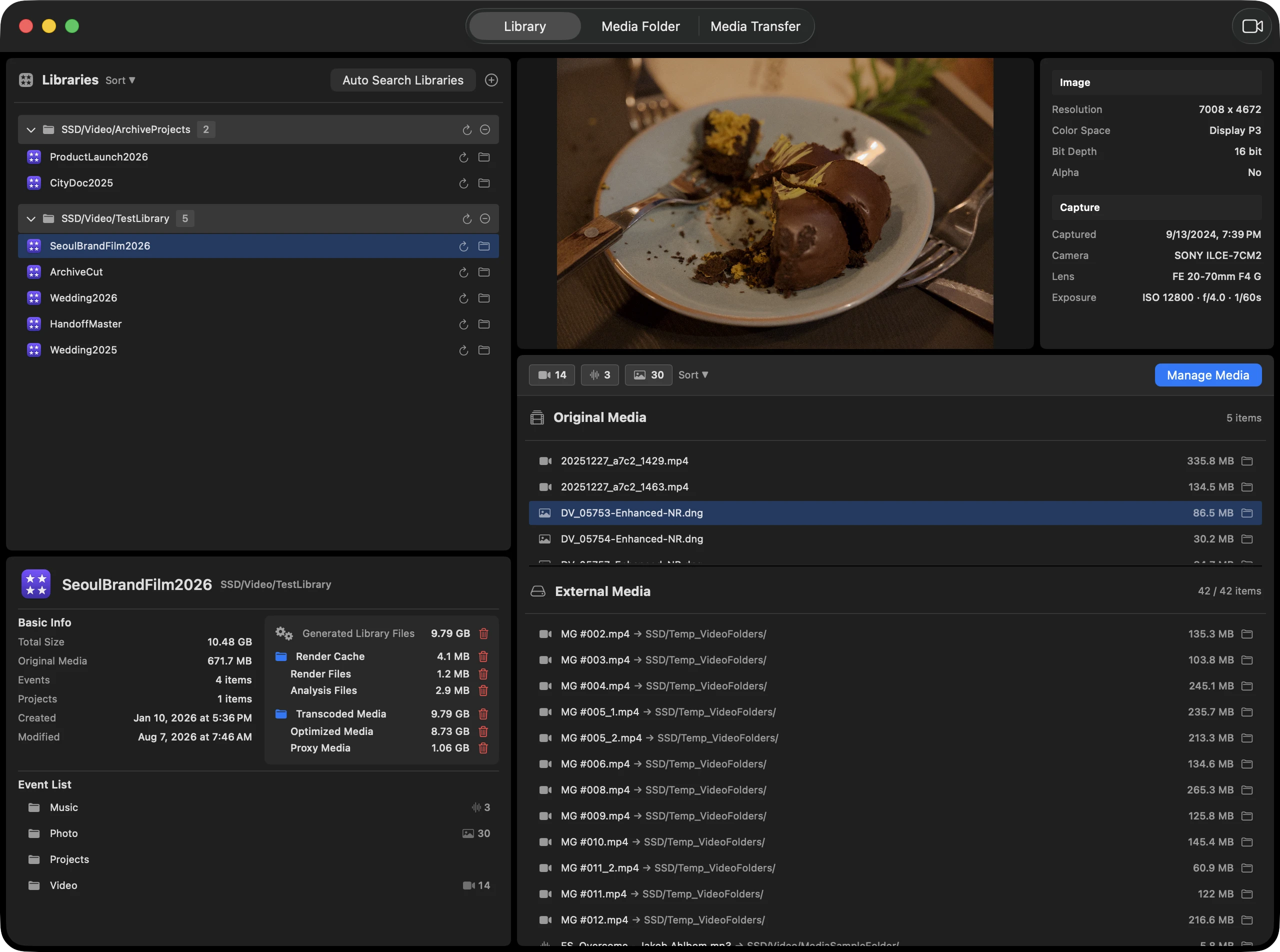
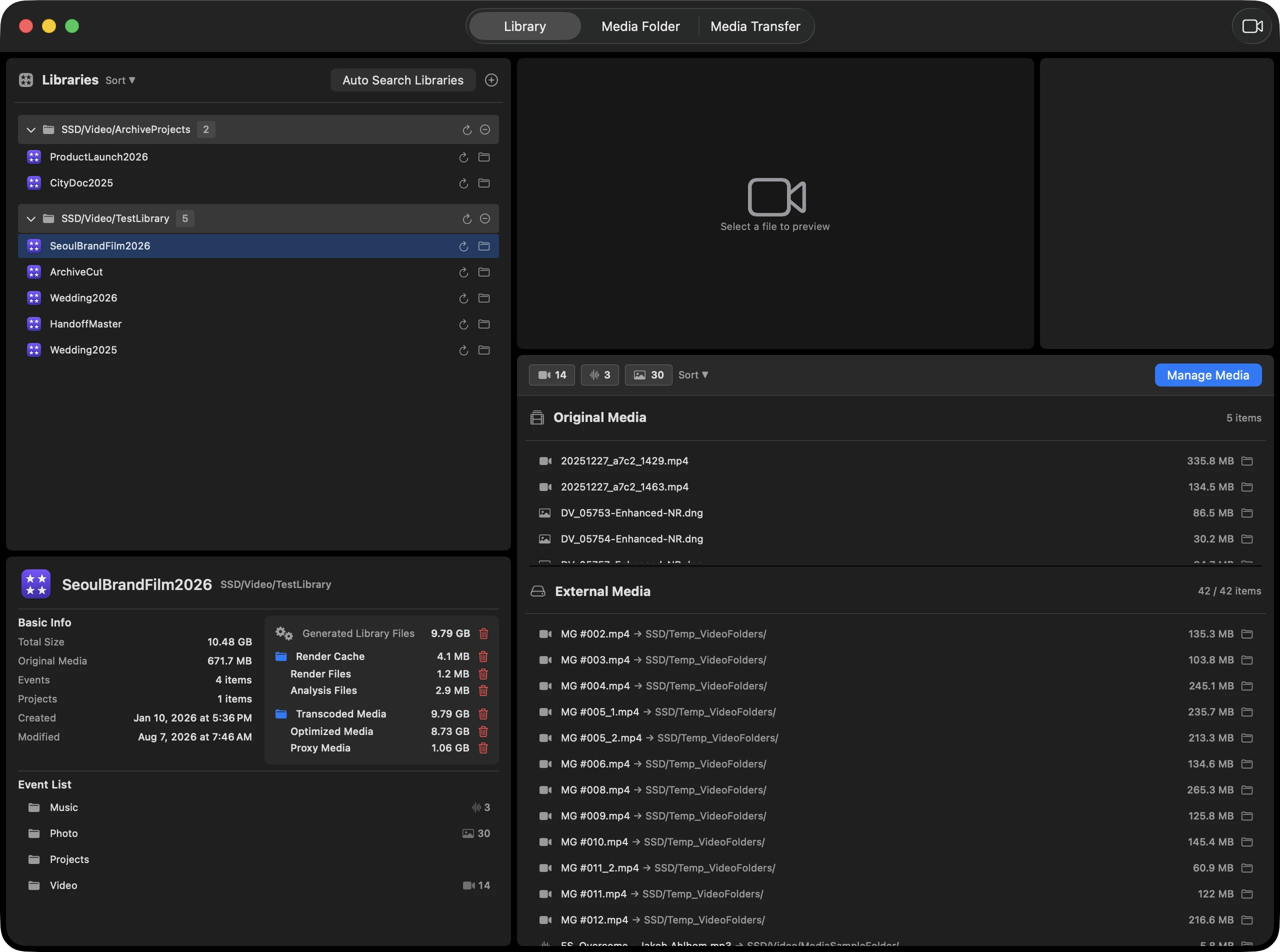
Library Analysis. Library Analysis screenshot: Library Info, original and symlink file lists, preview, and metadata panel

01 Library Analysis

Library Analysis

The starting point for every operation. Inspect library size, events, projects, original files, symbolic links, render/proxy/analysis caches, preview, and metadata together.

  • Add .fcpbundle files directly or with Quick Scan
  • Separate original files from symbolic link states
  • Use cache checks, preview, and Auto Relink entry points
Reverse Tracking. Reverse Tracking screenshot: media folder tree, matched library results, duplicate and unused file summary

02 Reverse Tracking

Reverse Tracking

Start from external folders and files instead of a library. See which libraries reference each item, then separate duplicates and unused files before cleanup.
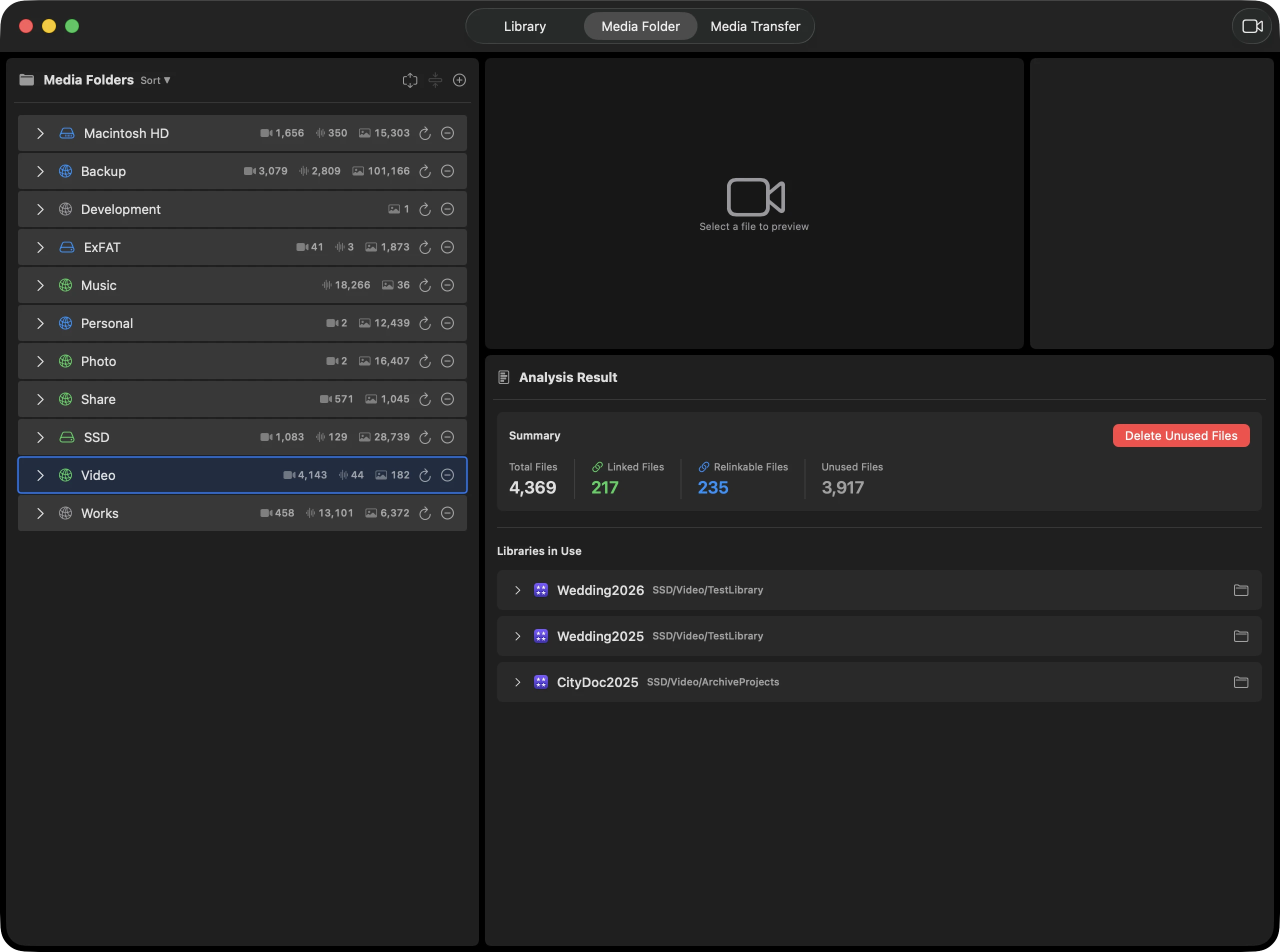
  • Trace library usage by folder or file
  • Visualize duplicate and unused files
  • Mark missing files/folders and reanalyze parents
Media Transfer. Media Transfer screenshot: library list, media list, three transfer modes, destination folders, and progress state

03 Media Transfer

Media Transfer

The execution screen for real file movement. Export internal originals, embed external symlink targets into a library, or move external media between storage locations.
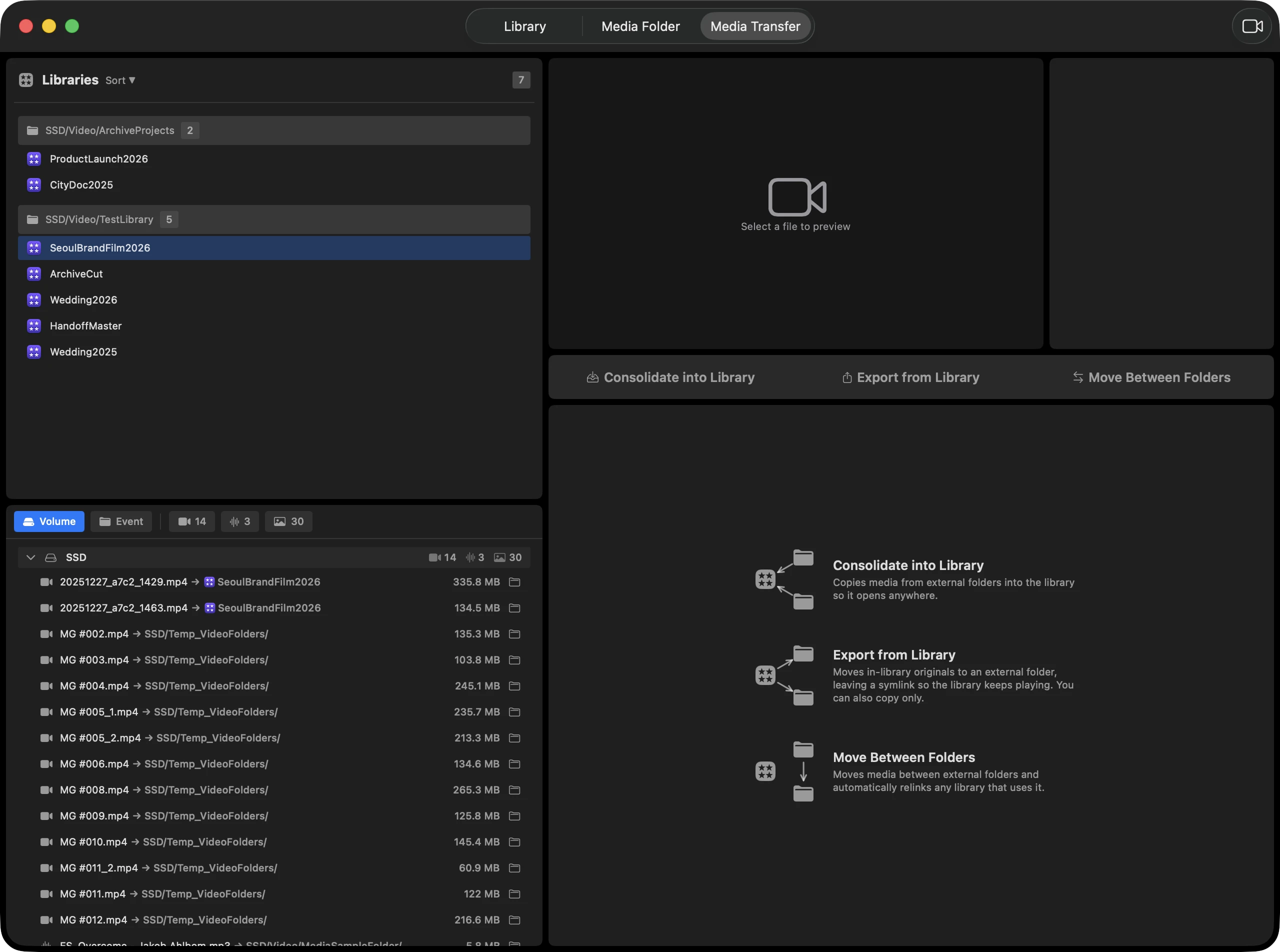
  • Export, embed, and external-to-external flows
  • Copy or move-and-delete transfer options
  • Affected-library review and result sheets

Auto Relink divides symbolic-link work into four focused modes

Review link state, externalize internal originals, change media locations, and repair broken links from one window so Missing Media and storage migration follow the same rules.
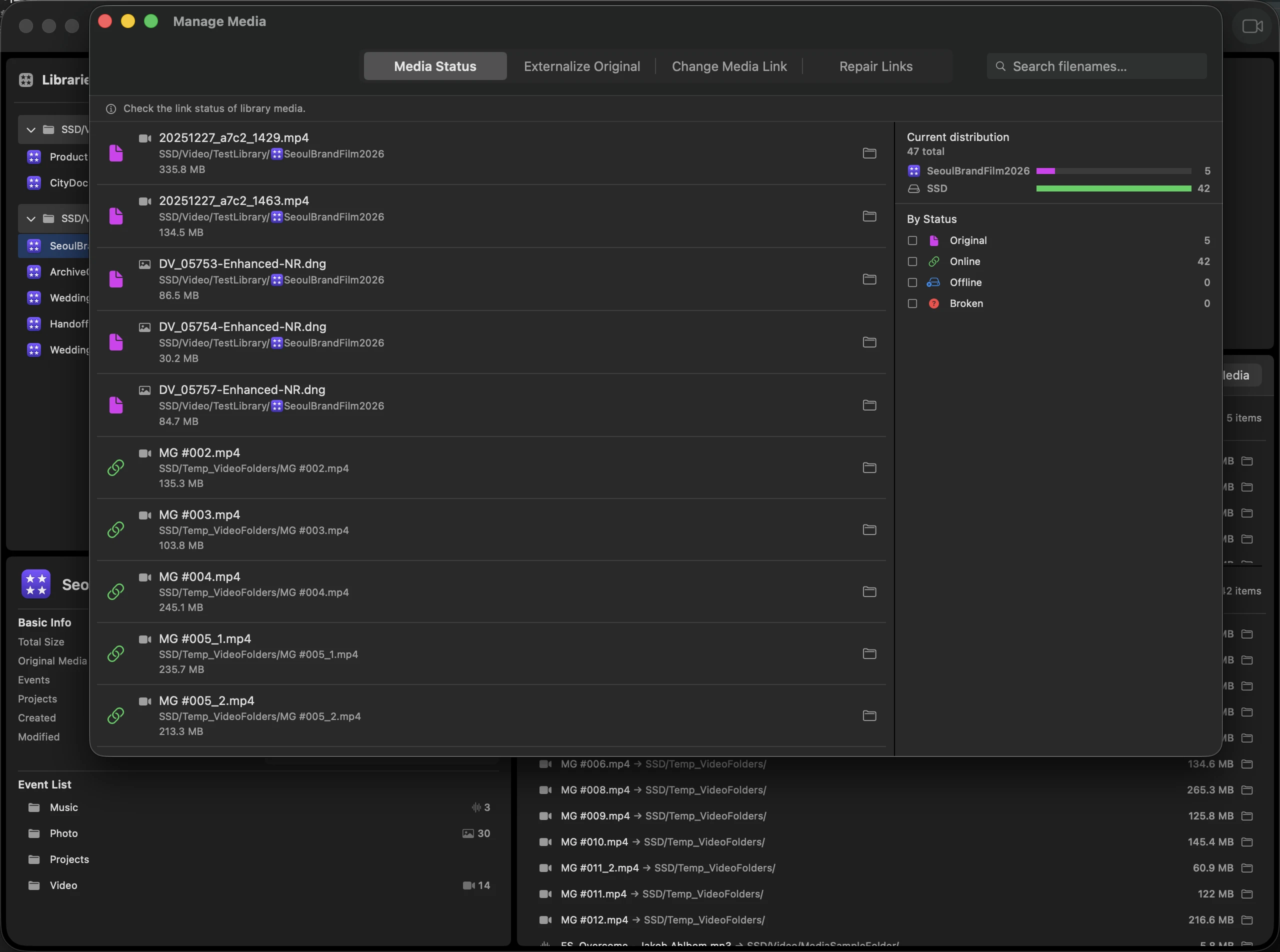
Link Status

Read whether each symbolic link is normal, broken, on an unmounted volume, or ready for repair before taking action.

Externalize

Replace a library original with a verified external duplicate and leave a symbolic link behind to reduce library size.

Media Change

When the same media exists in another external location, repoint the link to the new volume or folder.

Fix Broken

Repair links broken by drive renames or folder moves by comparing candidate paths before relinking.

Where does it fit into real work?

Repair Missing Media after a drive change

Use Auto Relink to compare candidate paths and repair broken symlinks after an external SSD is renamed or a folder moves.

Audit footage stored on a NAS

Register shared media folders and separate used files, unused files, and duplicates before deleting or archiving.

Archive internal originals after delivery

Export originals from the library to an external SSD or NAS, and in move mode leave symlinks behind so references stay intact.

Make a self-contained delivery library

Embed external symlink media back into the .fcpbundle so the library can be opened without the original external drive.

Representative scenario transfer path diagram. Four-lane diagram for Missing Media repair, NAS auditing, external archiving, and self-contained delivery, showing which screen each scenario passes through

Designed for repeated work on large projects

Startup restore and cache-based re-entry

Saved libraries, media folders, analysis results, and snapshots are restored after login so repeated work starts quickly.

File change and missing-state visibility

FSEvents, volume state, and missing file/folder prompts help distinguish deleted paths from offline external storage.

macOS permissions and external volumes

Security-scoped bookmarks restore access to approved folders, while SSD and NAS availability is reflected in the workflow.

Transfer progress and recovery routines

Byte-level progress, per-file status, cancellation handling, result sheets, full cache clearing, and factory reset support long-running work.

Restore, file monitoring, and transfer state architecture. System diagram showing app launch, permission restoration, analysis cache loading, FSEvents monitoring, transfer progress updates, and result verification

How it differs from manual cleanup

Manual

Guess deletion candidates from file names and dates in Finder

Footage Manager

Use Reverse Tracking to confirm library usage, duplicates, and unused state

Manual

Move files first, then relink Missing Media one item at a time in FCP

Footage Manager

Use Auto Relink and Media Transfer to validate candidates, change links, and review results together

Manual

Guess how moving external files affects other libraries

Footage Manager

Review affected libraries and external-to-external transfer results before treating the job as done

Manual cleanup vs Footage Manager workflow diagram. Before/after comparison diagram with Finder-based guessing and FCP relink checks on the left, and analysis, reverse tracking, transfer, and link cleanup on the right

Footage Manager is not an editing app. It is an operations tool for editing projects.

As libraries grow, what matters is finding files faster, moving them safely, and keeping projects openable afterward.