
Analysis · Free
Where is this file used?
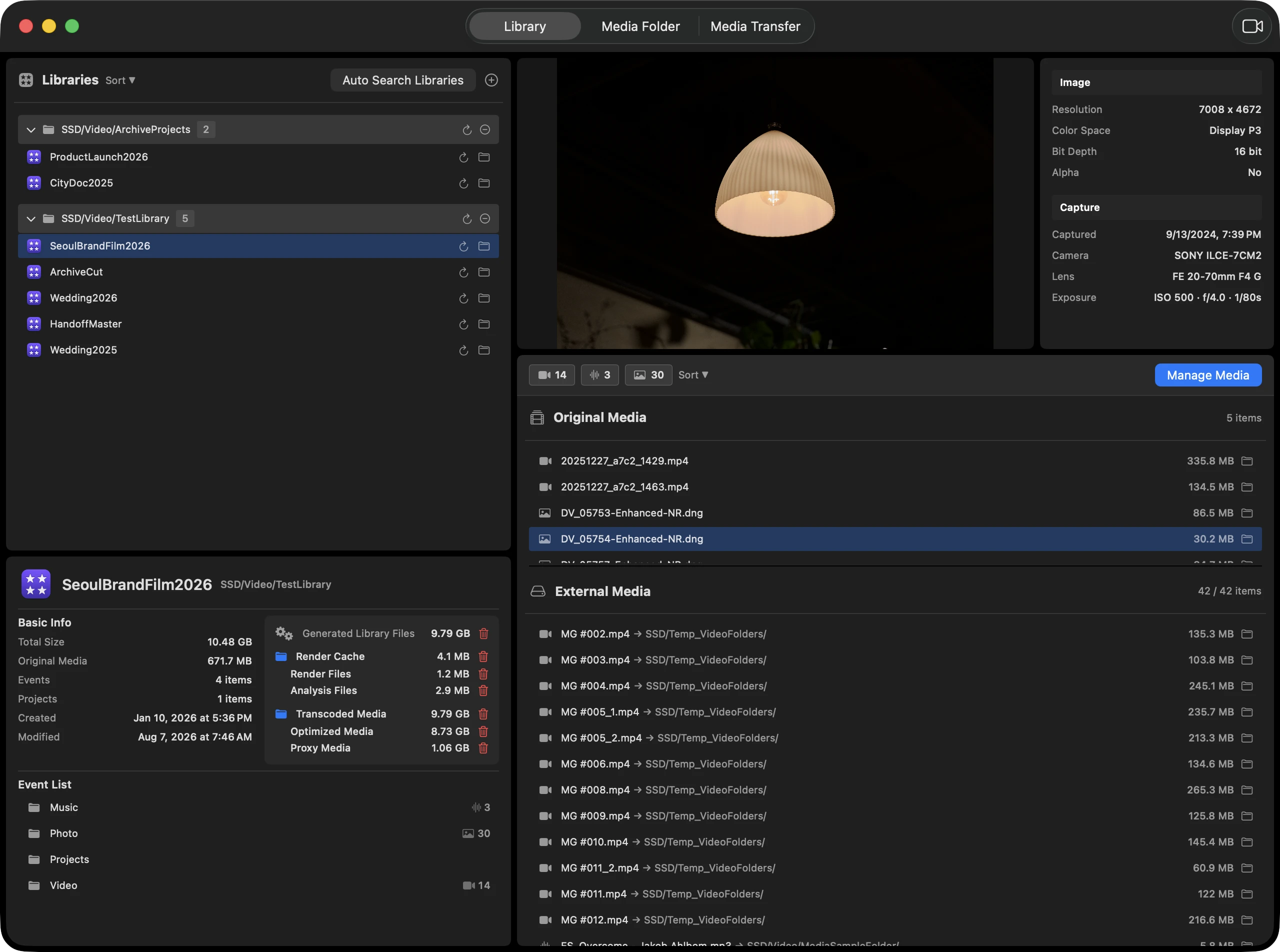
See which libraries use each file. Separate used media from unused files and duplicate candidates before cleaning up.
- Media file
- Using libraries
- Decision
Media management for Final Cut Pro on macOS
Check the space used by render files, analysis files, optimized media, and proxy media. Clean up the categories you choose, for free.

Start with the connections
Add Final Cut Pro libraries and media folders on SSDs or NAS storage. See where each file lives and which libraries use it.
Example relationships
| Media file | FCP libraries A | FCP libraries B | Location · usage · link status |
|---|---|---|---|
| SSD / clip-a.mov | ✓ | ✓ | Shared use |
| NAS / clip-b.mov | — | ✓ | In use |
| SSD / clip-c.mov | — | — | Unused candidate |
Once you know the connections
Explore the work you need to do, instead of learning the app one tab at a time.
See which libraries use each file. Separate used media from unused files and duplicate candidates before cleaning up.
When moving media between a library and external storage, review affected libraries and the destination, then handle links according to the transfer mode.
If an SSD name or folder path changes, review link status and replacement candidates, then restore the links you select.
Review space used by render and analysis files, optimized media, and proxy media. Select generated files to clean up for free.
Principles
Footage Manager operates on three principles.
Library analysis runs entirely on-device. Your footage is never uploaded to a server.
It reads library bundles, external media, and caches exactly as Final Cut Pro organizes them.
Before media moves, you see every affected library. Nothing runs until you confirm.
Download the app and add a library. Clean up generated files without signing in or subscribing.
Clean up generated files without signing in or subscribing.